
How to Automate Appointment Reminders for Growth
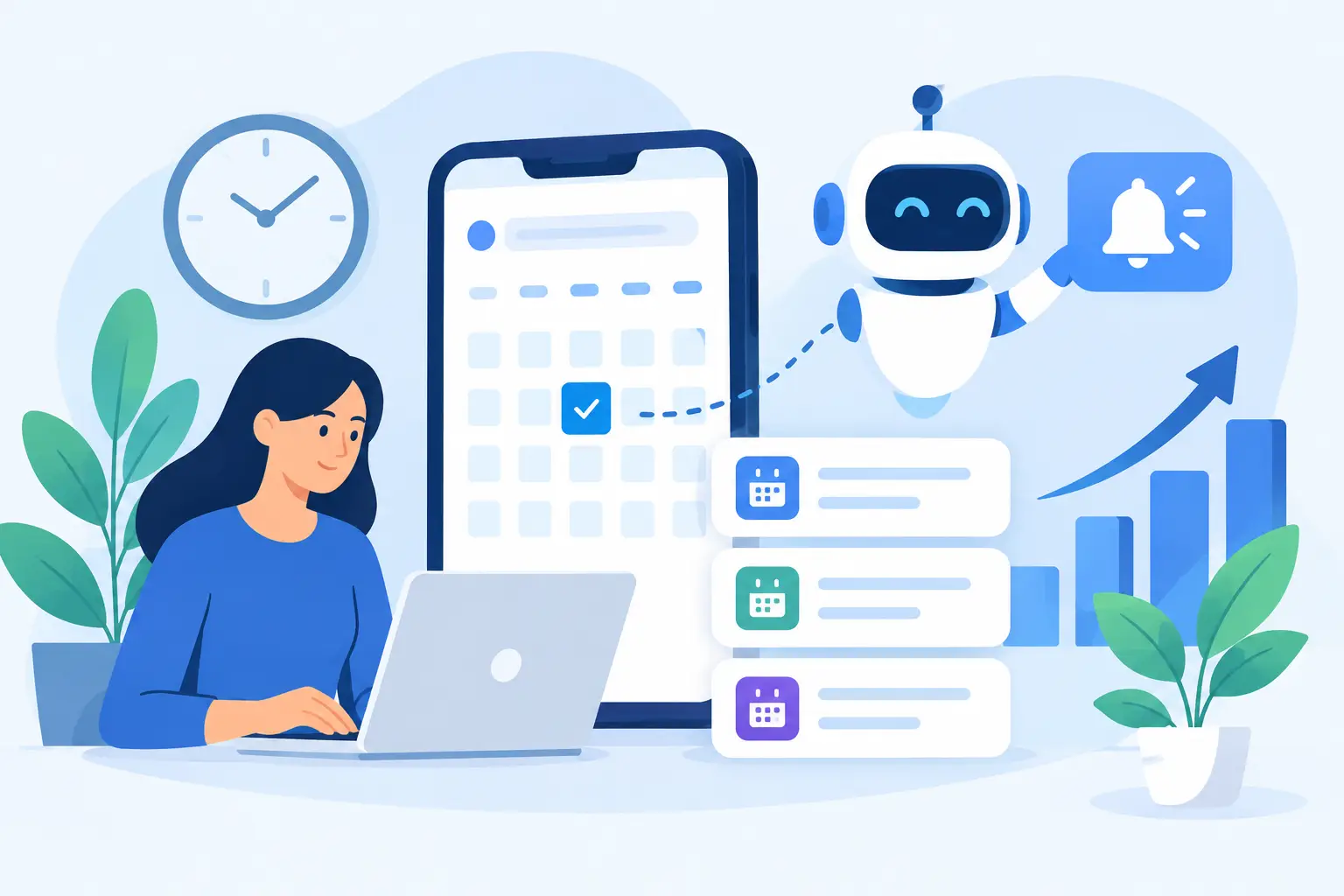
A client misses a 2:00 p.m. appointment, and the impact is larger than one empty slot. Your team loses service revenue, the next client may have waited longer than necessary for an opening, and someone at the front desk now has to make another follow-up call. Learning how to automate appointment reminders turns that reactive work into a consistent part of your booking operation.
The goal is not to send more messages. It is to send the right message, through the right channel, at the right point between booking and arrival. A well-built reminder workflow gives clients an easy way to confirm, reschedule, or prepare for their visit while giving your team a clearer view of the day ahead.
Why appointment reminders need an automated workflow
Manual reminders can work when a business has a handful of appointments a day. They become unreliable as your calendar fills. Staff members get pulled into checkouts, walk-ins, phone calls, payments, and service questions. Reminder calls are often the first task to slip, even though missed appointments directly affect revenue.
Automation creates consistency. Every new appointment can trigger the same confirmation and reminder sequence without requiring a staff member to remember the task. It also keeps a record of client replies, confirmations, cancellations, and rescheduling activity in the client profile rather than scattered across personal phones or handwritten notes.
That consistency matters for the client experience, too. People expect clear booking details and easy options if their plans change. A reminder that includes the service, date, time, location, and a simple action to manage the booking feels helpful. A vague message sent too late can feel like an afterthought.
Automation will not eliminate every no-show. Some clients will still forget, run late, or have an emergency. But it can reduce preventable gaps while giving you more time to fill cancellations and manage capacity.
How to automate appointment reminders step by step
Start with accurate booking information
Reminder automation is only as useful as the appointment data behind it. At booking, collect the client name, mobile number or email address, preferred contact method where possible, appointment date and time, service details, and the assigned staff member.
Make sure your booking system updates this information when an appointment changes. If a client moves from Tuesday to Thursday, the old reminder sequence must stop and a new sequence must begin. Otherwise, your business creates confusion instead of reducing it.
For clinics, wellness providers, and other businesses handling sensitive information, keep reminder content appropriately limited. A message can confirm an appointment without including private treatment details. Follow your applicable privacy requirements and use consent-based communication practices, especially for text messaging.
Choose channels your clients will actually see
Text messages tend to work well for near-term reminders because they are seen quickly. Email can be useful for booking confirmations, intake instructions, policies, directions, and longer pre-visit details. Many businesses get the best coverage by using both: email at booking and text closer to the appointment.
The right channel depends on your audience. A busy salon client may respond fastest to a text. A clinic client scheduling weeks ahead may appreciate an email confirmation with preparation instructions. Review the contact preferences and response patterns in your client records instead of assuming one channel fits everyone.
Avoid sending reminders through a staff member's personal phone. Messages should come from a business-managed system so conversations, opt-outs, and booking changes remain visible to the team.
Set a reminder cadence that matches your services
The ideal timing depends on how far ahead clients book, the value of the appointment, your cancellation policy, and how easily you can fill an opening. A haircut booked two days ahead does not need the same sequence as a three-hour color service or a consultation booked six weeks in advance.
A practical starting point is a confirmation immediately after booking, a reminder 48 to 72 hours before the appointment, and a final reminder 24 hours before. For services with lengthy preparation, deposits, or limited availability, add an earlier reminder around one week before the visit.
Do not over-message. Sending several reminders in a single day can feel excessive and may lead clients to opt out. If your business sees many same-day bookings, a confirmation plus one short reminder may be enough. Test the schedule against your actual no-show and cancellation patterns.
Make every reminder actionable
A strong reminder answers the questions a client would otherwise call to ask: When is my appointment? Where is it? What am I booked for? What should I do if I need to change it?
Keep the main message short, but include a clear path to confirm, reschedule, or cancel according to your policy. If your online booking page can show available times, a client who needs to move an appointment can choose another opening without waiting for business hours. That protects the relationship and creates a chance to refill the original slot.
For example, a salon reminder might say: “Hi Maya, this is a reminder of your color appointment at 3:00 p.m. tomorrow. Need to make a change? Please use your booking options before our cancellation window.” A spa may add arrival guidance, while a clinic may include a request to complete forms before check-in.
Use your brand name and a recognizable sender identity. Clients are less likely to trust or respond to a message that appears to come from an unknown number or generic address.
Connect reminders to your full booking operation
Reminders work best when they are part of one connected workflow, not a separate messaging tool. When booking, client records, staff schedules, payments, and campaigns are managed in different systems, staff often have to reconcile changes manually.
A centralized platform can update reminders when an appointment is booked, moved, canceled, or reassigned. It can also show whether a client confirmed, which helps the front desk focus on appointments that need attention. CleverBooking supports this operational approach by bringing appointments, client CRM activity, staff management, payments, and customer communications into one dashboard.
Use reminder responses to guide next steps. If a client cancels outside your policy window, your team can see the opening quickly and contact waitlist clients or promote the slot through an appropriate campaign. If a client repeatedly fails to confirm, you may choose to require a deposit or personal outreach for future high-value services.
This is where reminders become more than a no-show tool. They help your business make better decisions about capacity, client behavior, and follow-up.
Build exceptions into the process
Not every appointment should receive the identical sequence. A new client may need directions, intake forms, or a consultation policy. A recurring client who books the same service every month may only need a concise text. A client who has opted out of text messages should receive communication through another approved channel.
Create rules for common exceptions before the system goes live. Consider how you will handle same-day appointments, recurring bookings, staff changes, appointments requiring deposits, and services with preparation instructions. These details prevent automation from sounding impersonal or sending the wrong information.
Your cancellation policy should also be visible before the reminder stage. Include it on the booking page and confirmation message, then reference it briefly in subsequent reminders. A reminder is not the best place to surprise a client with a fee they did not know about.
Measure what improves, then adjust
After your workflow has been running for several weeks, review more than the number of messages sent. Look at no-show rate, late-cancellation rate, confirmation rate, rescheduled appointments, and how quickly canceled slots are refilled. Compare these results by service type, location, staff member, and booking lead time when that data is available.
If confirmations are high but no-shows remain unchanged, your final reminder may be too early or your cancellation process may be difficult. If clients frequently reschedule after a 72-hour reminder, that may be a sign that the timing is working because it gives your team time to fill the slot. A reschedule is often a better operational outcome than an unfilled appointment.
Ask the front desk what they see, too. Analytics can show trends, but staff can identify practical issues such as clients receiving duplicate messages, confusing wording, or appointments that are not updating after a change.
Common reminder mistakes to avoid
The biggest mistake is treating automation as a set-it-and-forget-it project. Booking policies change, services evolve, staff schedules shift, and client communication preferences are not static. Review templates and timing regularly.
Other avoidable issues include sending reminders after a client has already canceled, failing to include a rescheduling option, using overly detailed health or service information in messages, and relying on messages without confirming that contact data is accurate. Keep the workflow simple enough for staff to manage and specific enough for clients to act on.
A reminder system should make your calendar easier to trust. When clients receive clear communication and your team can see every appointment status in one place, empty slots become easier to prevent and daily operations become easier to control.